Ask for Help!
We provide excellent support for free users and existing customers. Please join our Discord if you require any assistance.
What is Theta Terminal and why do I need it?
First off, with recent updates, you no longer need the Terminal as Theta Data has released a Python Library. If you’d prefer to install the Terminal, read on.
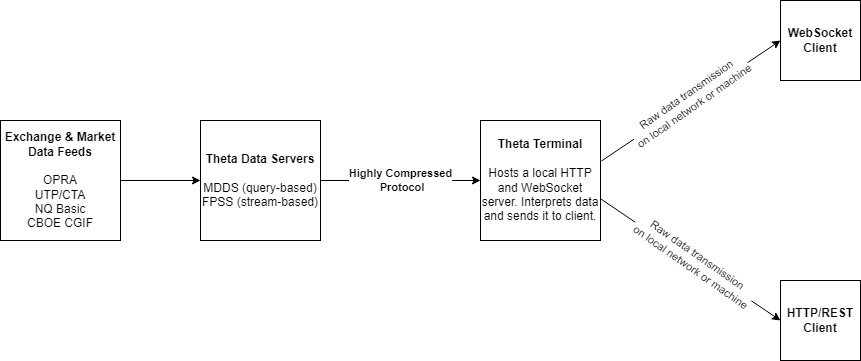
Theta Data uses a proprietary protocol to send you data. This allows for up to a 30x reduction in bandwidth. Theta Terminal hosts a local HTTP server on your machine that only you can access. The REST API endpoints in this documentation connect to that server. Theta Terminal is a value-add: it reduces latency, increases throughput, and improves overall market data delivery performance.
REQUIRED
The Theta Terminal must be running to access data; this documentation is for v3 only!
Installing Java
Java 21 or higher is required to use the Theta Terminal.
Recommendation
Use Java 21 or higher as performance for optimal performance and stability.
Check Java Version
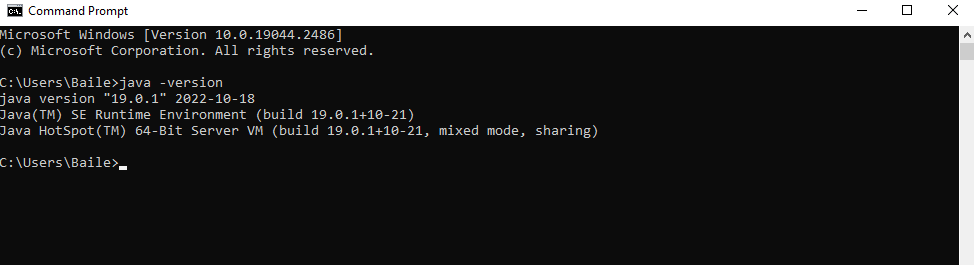
You can easily check your Java version by typing the following in your command prompt / terminal:
java -versionIf you encounter a message such as java is an unregonized command, you need to install Java. If your Java version is under 21.0.0, you need to install a newer version of Java.
Install Java on Windows & Mac
Download & open the Java installer on the Oracle Website and run the installer. Type java -version again to verify the minimum required version of Java has been installed.
Install Java on Ubuntu
Enter the following command in your terminal. You might require elevated privillages.
apt install openjdk-21-jdk openjdk-21-jreType java -version again to verify the minimum required version of Java has been installed.
Installing Theta Terminal
The Theta Terminal is an auto-updating Java JAR file. You do not need to "install" anything other than Java 21 or greater to get it to work. After downloading the JAR file, place it in a directory, we recommend ThetaTerminal. Then run the JAR file by issuing the following command:
java -jar ThetaTerminalv3.jarThat is it! The Theta Terminal will ensure you are running the latest version.
You can download the Theta Terminal here: ThetaTerminalv3.jar
Worried about downloading the terminal?
Jar files can be decompiled. This means you can view the source code of the Theta Terminal, so you can figure out what exactly is going on if you need to. We aim to be as transparent as possible with our software and data. If you still have questions, feel free to reach out to us so we can provide more information.
Notice for macOS users
When downloading this application on macOS, you may see a warning such as “ThetaTerminalv3.jar can’t be opened because it was downloaded from the Internet.”
This is expected behavior from Apple’s Gatekeeper for applications distributed outside the Mac App Store or without Apple notarization.
Verification
If you would like to independently verify the JAR, you can upload it to VirusTotal, which scans files using multiple antivirus engines:
https://www.virustotal.com/gui/home/upload
How to proceed
- Open System Settings → Privacy & Security.
- Scroll to Security.
- You will see a message that
ThetaTerminalv3.jarwas blocked. - Click Open Anyway, then confirm.
Users are encouraged to review the VirusTotal analysis before opening the application.
Worried about auto-upgrading?
The terminal will never attempt to update itself while running, only on startup. The terminal will also fall-back to a previous version if for some reason the new version fails to run on your system. To avoid automatic updates, you can run the library JAR directly by accessing it in the lib directory, located in the same directory as the ThetaTerminalv3.jar file.
Authentication
API Key
Minimum Versions Required
API key authentication requires the Theta Bootstrap and Theta Terminal to be version 20260615 or later, and the Python library to be version 1.0.9 or later.
You can generate an API key from your user portal.
There are three ways to provide your API key to the Theta Terminal for authentication:
1. Command Line Argument
You can pass your API key directly as a command-line argument when launching the Terminal:
java -jar ThetaTerminalv3.jar --api-key your_api_key_here2. Environment Variable
Set your API key as an environment variable named THETADATA_API_KEY:
# On Linux/macOS
export THETADATA_API_KEY="your_api_key_here"

# On Windows (Command Prompt)
set THETADATA_API_KEY=your_api_key_here

# On Windows (PowerShell)
$env:THETADATA_API_KEY="your_api_key_here"
3. .env File
Create a file named .env in the same directory as your ThetaTerminalv3.jar file (or specify its parent directory path using --dotenv-dir) and add your API key:
THETADATA_API_KEY="your_api_key_here"Priority Order
The Terminal will look for your API key in this order: command line argument, environment variable, then .env file. If multiple are provided, the highest priority method will be used.
Credentials (Email and Password Authentication)
If you prefer to authenticate using your email and password instead of an API key, these credentials must be saved in a creds.txt file in the same directory as the ThetaTerminalv3.jar file. You can also specify an alternate location using the --creds-file command-line option.
To create a creds.txt file, place your email address on the first line, and your password on the second line.
Config File
When you run the terminal for the first time, it will write a default configuration file to the same location as the ThetaTerminalv3.jar file. For most use cases, you do not need to modify this file at all. There are 4 configs you might want to change:
host- This is the "host" the HTTP server will bind to. If you don't know what this means, don't change it 😃port- This is the port the HTTP server will use. If you don't know what this means, don't change it 😃log_directory- This is where logs for the terminal are stored.request_queue_length- This is the number of requests to allow waiting to be executed when making concurrent requests.
MDDS (v3 Market Data Server)
The mdds.enable option controls whether the terminal starts its MDDS connection. It is enabled by default:
[mdds]
enable = true
Setting it to false stops the terminal from starting the v3 REST API and MCP servers. When disabled, authenticating will also not start a new user session.
Launch Theta Terminal
On the first run, the terminal will save a copy of the default configuration file. You can modify settings in this file, but for most use cases, you do not need to change anything.
The Theta Terminal can be run from the command line on Windows, Mac, and Linux by issuing the following command:
java -jar ThetaTerminalv3.jarCreds File Required
Before launching the terminal, you must create a creds file with your email on the first line, and password on the second. Save the file to creds.txt, and place it in the same directory as ThetaTerminalv3.jar.
Good To Knows
If you have issues getting started, join our discord server and ask for help.
Does a datapoint look different from what you expected? This article contains information regarding the nuances of datasets available on this platform.
If you are making concurrent requests, follow the outlines provided in our concurrent requests article.
What's Next?
At this point the Theta Terminal should be running. If you encountered any issues, please reach out to us!
OpenAPI YAML
The OpenAPI YAML file is available for download here